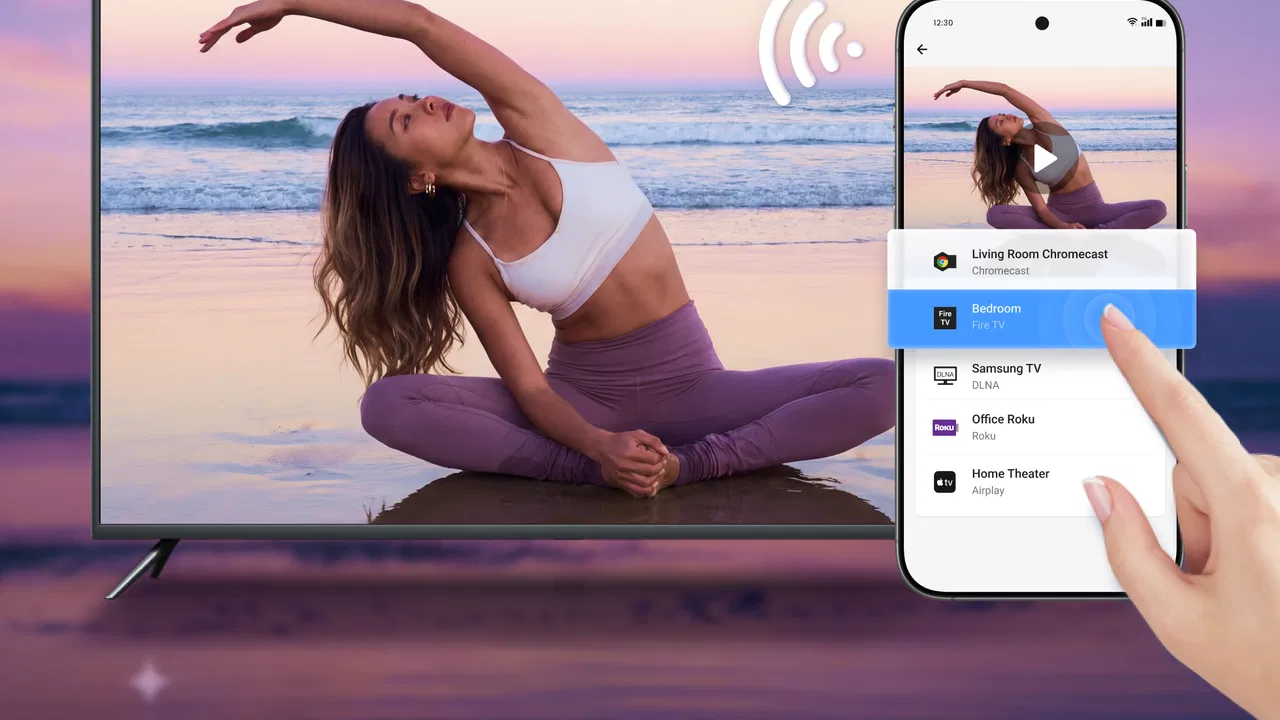
Cast to TV - Screen Mirroring
- 4.0
- Rating
- 1.00M
- Installs
- Free
- Price

 Analysis by App-foxy
I tend to judge screen-casting apps by what happens after the first tap. Connecting to a television is easy to promise; making the connection useful in an ordinary home, during a presentation, or while reviewing creative work is much harder. Cast to TV - Screen Mirroring is a free video-player and casting app from Video Player & Cast to TV, built around sending videos and photos to a larger screen and mirroring a mobile display when that is more practical.
That makes it less of a creative editor and more of a delivery tool. I would not install it expecting a timeline, filters, captions, or publishing controls. I would use it after the creative work is already on my phone, when I want to inspect it, show it to someone nearby, or move the viewing experience from a small display to a Smart TV or Fire TV. That distinction matters, because the app’s value comes from reducing the distance between finished media and the people who need to see it.
The app sits in the Video Players & Editors category, although its strongest identity is clearly casting rather than editing. It is free to start, available for Everyone, and supports devices running Android 7.0 or later. Its current version is 1.7.7, and its broad adoption is reflected in more than a million installs, with a 4.0 average from roughly fourteen thousand ratings. I read those figures as a sign of a useful mainstream tool rather than a flawless one: plenty of people find it practical, but the experience can still depend heavily on the phone, television, and network involved.
You May Also Like

 Blood Strike: 2.5 Anniversary
Blood Strike’s Loadouts Turn Every Drop Into a Tactical Gamble
A close look at Blood Strike’s custom loadouts: how fast access to signature weapons reshapes its battle royale rhythm, rewards preparation, and narrows the gap between fights.

 Pandora - Music & Podcasts
Pandora’s Music Is Easy to Start, but Harder to Recover
Pandora’s strength is its low-effort path from a seed to a station. Its weak spot is how much confidence it asks you to place in connection, setup, and quiet recovery.

 8 Ball Pool
 Is Built on Rivalries, Rematches, and Routine
A close look at the rivalries, rematches, shared routines, and unanswered safety questions that turn a quick pool match into a persistent mobile community.

 Samsung Music
’s Quiet Strength Is Playing What You Already Own
Its reach comes less from spectacle than from dependable access to a personal library. That simplicity is both the app’s strongest retention engine and its ceiling.

 AccuWeather: Weather Radar
AccuWeather Review: A Quick, Clear Forecast for Everyday Decisions
For everyday plans, the best forecast is the one you can understand quickly. AccuWeather makes rain timing, radar, and local conditions easy to act on, with a few trade-offs.

 Hill Climb Racing
Why Hill Climb Racing Still Turns Crashes Into One More Run
A tiny car, a bumpy hill and one more upgrade: Hill Climb Racing keeps resurfacing because its simple chaos makes every near-miss feel personal.
More From Our News Desk
View All News


From a creative idea to a bigger screen
I like how this section treats a larger screen as a useful checkpoint, not just a way to make phone content look bigger. I’ll focus on the choices that matter before casting—especially whether the material is ready to be judged at a distance—and how that changes the creative process that follows.
Where it fits at the start of a project
The most useful starting point is not opening the app before creating anything. It is having a piece of media ready to inspect. I can imagine using it after recording a short product demonstration, assembling a photo sequence for a family event, or preparing a video that will be shown in a living room. Instead of passing the phone around, I can attempt to put the material on a television and judge whether the framing, text size, and overall rhythm work at a distance.
That last point is more important than it sounds. A video that looks polished on a phone may reveal problems on a large screen. Small labels can become unreadable, portrait footage can feel awkward, and dark scenes may be harder to evaluate. Casting gives the creator a quick review stage before delivery. It does not improve the source file, but it can expose decisions that are easy to miss during editing.
I also like the separation between creating media and presenting it. If I have already edited a clip in another app, this tool can serve as the viewing bridge without forcing me to import the project into another editor. That keeps the workflow simple: make the content where the editing controls are strongest, then use this app when the destination is a television.
The first connection is the real test
In practice, I would begin by checking that the phone and the receiving screen are ready to communicate on the same home network. This is the kind of preparation that prevents a lot of unnecessary tapping. If the television does not appear, I would first check the network and whether its casting function is active rather than assuming the video itself is the problem.
The app’s purpose is straightforward: select a video or photo, choose a compatible screen, and send the content there. It also presents screen mirroring as part of the experience, which is useful when the media is not stored as a simple file or when I need to show an app screen, a preview, or a sequence of actions. Casting a single video is usually cleaner for viewers; mirroring is more flexible but can expose notifications, orientation changes, and everything else happening on the phone.
That is one of the first practical trade-offs. For a polished presentation, I would prefer direct media casting whenever possible. For a quick demonstration or an image that is awkward to share through a normal player, mirroring is more convenient. The app is most effective when I choose the mode based on the job instead of treating mirroring and casting as interchangeable.
Useful for review, not for making the source
Because this is not a full editing suite, the creative starting point has to happen elsewhere. I cannot treat it as the place where I trim a rough recording, correct color, add music, or build a finished sequence. That limitation is not a surprise, but it changes who should download it. A creator looking for an all-in-one mobile studio will need another app for production and can regard this one as the final viewing link.
For me, that narrower purpose is actually helpful. A dedicated casting tool avoids cluttering the review stage with editing controls I do not need. I can concentrate on whether the work communicates well on the intended screen. If the source needs changes, I return to the editor, make the revision, and cast it again.
Making, checking, and refining the presentation
Here I’m looking at the practical review loop: what to inspect on the television, how to distinguish a playback problem from a presentation issue, and why keeping exported versions clearly named can save confusion. That leads naturally to the next section, where the question shifts from refining the work to showing it to other people.
A realistic everyday workflow
Consider a simple evening scenario. I have recorded a short video on my phone for a local club, edited it in a separate application, and want two other people to review it before I send it on. Passing the phone around would make it harder to notice whether the opening title is legible or whether the final image stays on screen long enough. I would open this app, look for the television, start the video, and let everyone watch from a normal seating distance.
During that review, I would pay attention to details that are easy to overlook on mobile: whether faces are cropped, whether vertical footage leaves distracting empty space, whether subtitles can be read, and whether the first few seconds make sense without explanation. If a change is needed, I would edit the original file elsewhere and repeat the viewing step. This turns the app into a practical checkpoint in the workflow rather than a one-time novelty.
Photos benefit from a similar approach. A group of images can be much easier to discuss on a television than on a handset, especially when several people are deciding which shots to keep. The app’s photo-casting function is therefore useful for selection and feedback, even though it does not appear to be designed for organizing a complete professional asset library.
Direct casting versus screen mirroring
When I want the cleanest playback, I would choose a selected video or photo and send that content directly. This keeps the phone available as a controller and avoids showing unrelated phone activity. It is the better choice for a finished clip, a family slideshow, or a client-facing preview where presentation matters.
Screen mirroring has a different strength: it lets me show something that may not fit a simple media-selection workflow. I could use it to demonstrate a mobile interface, walk someone through a creative app, or display a preview that is still inside another application. The cost is that the phone becomes part of the visible presentation. A call, notification, accidental swipe, or change in orientation can interrupt the impression.
My practical tip is to prepare the phone before mirroring. Close unrelated apps, turn on a suitable orientation, silence interruptions where appropriate, and keep the screen awake. These are not glamorous features, but they make the difference between a controlled handoff and a distracting one. Direct casting needs less preparation; mirroring rewards more discipline.
What “fast and stable” means in real use
The app is presented as a fast and stable way to cast, and that is the right goal for this kind of utility. Still, I would not interpret that as a guarantee that every connection will behave identically. Wireless casting is affected by the quality of the local network, the receiving television, the phone, and the size or format of the media. A smooth result in one room does not automatically predict the same result elsewhere.
For creative review, I would test the exact file I plan to show before inviting an audience. A short test can reveal whether playback starts promptly, whether the image is framed correctly, and whether the connection remains usable for the whole clip. This is especially worthwhile when the video is important or when I am relying on mirroring rather than sending a single file.
If playback hesitates, I would avoid immediately blaming the app. I would move the phone closer to the network source, reduce competing network activity, reconnect the receiver, and try a smaller or simpler test file. Those steps do not change the app’s capabilities, but they make its strengths easier to evaluate fairly. The main weakness of any wireless casting workflow is that it has more points of failure than simply watching the media on the phone.
Iteration without losing track of versions
This app can support iteration, but it does not manage revisions for me. If I am repeatedly checking a video, I would name exported files clearly before opening them in the casting workflow. A simple distinction such as “opening revised” and “opening final review” is more useful than relying on memory, especially when multiple clips have similar thumbnails.
That is a non-obvious limitation for creators: the casting screen is not the same thing as a project workspace. It helps me see a result, but it does not replace version control, feedback notes, or source-file organization. I would keep those tasks in the editing or storage tools I already use, then bring only the current review file into this app.
For quick personal decisions, that is enough. For a team, I would treat the app as the display layer and keep the actual approval process somewhere else. The distinction prevents confusion about which file was reviewed and avoids expecting a casting utility to behave like a collaboration platform.
When another option is the better choice
There are situations where I would skip this app. If my television already handles the exact casting method I need directly from the phone’s operating system, adding another utility may not improve the workflow. If I need serious editing, a dedicated mobile editor is the better purchase of attention. If I need cloud-based sharing, comments, approvals, or a formal handoff to clients, a collaboration service will be more suitable.
I would also be cautious about using screen mirroring for long, high-stakes presentations when a wired connection or a purpose-built presentation setup is available. Wireless convenience is excellent for informal review, but a more controlled connection can be preferable when interruptions would be costly.
On the other hand, people who regularly show phone videos and photos to a household, classroom, club, or small group may appreciate having a focused route to a larger screen. The app’s support for Smart TV and Fire TV makes its intended setting clear, and its free entry point makes it easy to test before deciding whether it belongs in a regular routine.
Costs and the decision to keep it
The app itself is free, but optional in-app purchases range from $6.99 to $36.99 per item. I would approach those purchases carefully. The basic question is not whether extra payment sounds reasonable in the abstract; it is whether the free experience already solves the specific casting problem I have.
For occasional family viewing, I would start without paying and judge the connection, device discovery, and playback behavior on my own equipment. For frequent use, I would consider whether the paid option removes a real annoyance or adds a capability I genuinely need. I would not pay simply because the app is installed on many devices. The right value depends on how often casting is part of my workflow.
The Everyone age rating also makes the app approachable for general household use. That does not turn it into a children’s creative tool or a supervised media platform; it simply means the intended content is suitable for a broad audience. Parents or teachers would still need to control what is selected and mirrored, because the app displays whatever the user chooses.
Handoff to the audience and my creator verdict
A successful handoff depends on more than getting an image onto a television; the right file and a prepared phone matter too. I’ll weigh where this casting approach earns its place in a creator’s routine, then give my verdict on who benefits most and when another tool is the smarter choice.
Preparing the final viewing
For a final handoff, I would separate three tasks: confirm the correct file, confirm the receiving screen, and confirm the viewing conditions. This app helps most with the second and third. It can put the work where the audience will see it, but I remain responsible for exporting the right version and checking that the presentation looks intentional.
Before starting, I would remove unnecessary distractions from the phone if I am mirroring, set the television to a comfortable input, and keep the source device charged. I would also watch the beginning and ending rather than assuming the complete file will behave as expected. A creator can lose credibility through a wrong version or an abrupt ending even when the casting connection itself works perfectly.
For a photo handoff, I would decide in advance whether the audience should see individual images or a broader sequence. For video, I would use direct casting when I want the television to feel like the playback device and mirroring when I need to show the wider phone workflow. That small decision makes the handoff feel more deliberate.
What I like and what keeps it from being essential
I like the app’s clear role. It is not pretending to replace an editor, a media library, or a publishing service. It gives me a way to move videos and photos from a phone to a larger compatible screen, while mirroring covers situations where direct playback is not enough. That combination is useful for reviewing creative output at the point where mobile work becomes a shared viewing experience.
The friction comes from the wireless environment and from the app’s limited role in the larger process. I still need another tool to make changes, another habit to track versions, and sometimes another connection method for important presentations. The experience is also only as convenient as device discovery and network stability allow. Those are meaningful limitations, not reasons to dismiss it.
My final view is that Cast to TV - Screen Mirroring works best as a lightweight presentation and review bridge. I would recommend it to someone who often records or edits on a phone and wants a quick way to inspect the result on a Smart TV or Fire TV. I would not recommend it as the main app for producing creative work, managing approvals, or delivering files professionally.
Because it is free to begin, I would test it with the exact television and media files I use most. If it reliably turns a small-screen preview into a comfortable group review, it has earned a place in the toolkit. If the phone’s built-in casting already handles the same job smoothly, or if the project needs editing and collaboration rather than viewing, I would keep the existing solution instead. In my experience, this app is valuable precisely when the final step is simple: make the work on the phone, then see it properly on the screen where other people will experience it.
FAQs for Cast to TV - Screen Mirroring
01What devices are compatible with Cast to TV - Screen Mirroring?
Cast to TV - Screen Mirroring is designed to work with a wide range of devices. It supports most smart TVs, Roku, Chromecast, and other streaming devices. To ensure compatibility, make sure your devices are on the same Wi-Fi network and that your TV or streaming device supports screen mirroring.
02How do I set up Cast to TV - Screen Mirroring on my smartphone?
Setting up Cast to TV - Screen Mirroring is straightforward. First, download the app from your app store. Connect your smartphone and TV or streaming device to the same Wi-Fi network. Open the app, select your TV or device from the list, and follow the on-screen instructions to start mirroring.
03Does Cast to TV - Screen Mirroring support audio as well as video?
Yes, Cast to TV - Screen Mirroring supports both audio and video casting. This means you can stream movies, music, and even presentations with full audio to your TV. Ensure your TV volume is turned up and that your phone is not in silent mode for the best experience.
04Are there any subscription fees or in-app purchases in Cast to TV - Screen Mirroring?
Cast to TV - Screen Mirroring offers a free version with basic features. However, for an enhanced experience, such as ad-free usage and additional functionality, there might be in-app purchases or subscription options. Check the app store listing for the latest pricing details.
05What should I do if I experience lag or connection issues?
If you experience lag or connection issues, first ensure that both your smartphone and TV are connected to the same high-speed Wi-Fi network. Restart both devices and try again. For persistent issues, check for app updates or refer to the app’s support section for troubleshooting tips.
Pros
- Easy setup and user-friendly interface.
- Supports a wide range of TV brands.
- High-quality video streaming.
- No noticeable lag during mirroring.
- Compatible with multiple file formats.
Cons
- Contains in-app ads that can be intrusive.
- Limited features in the free version.
- Requires strong Wi-Fi for best performance.
- Some devices may experience connectivity issues.
- Occasional app crashes reported by users.

Cast to TV - Screen Mirroring
Gallery